
Pitch Master 8, “Match a piano’s pitch,” is a lesson in listening to a piano reference and singing at the same pitch. Follow the conversation between teacher and student to learn how to listen, record, and review your voice.

Teacher, do I have to imitate the piano with my voice? I can’t make my voice sound like a piano…
Your usual “ah” is fine. What you need to match is the pitch of the piano note. The voice reference from Lesson 7 is replaced by a piano this time. Listen carefully to how high or low each note is.
If you are reading this guide inside the app, tap “Game Start” at the bottom of the screen to begin practicing.
The screens shown here are examples to explain the controls. Backgrounds, notes, values, and results vary between practice sessions. Tap an image to enlarge it.
1. Choose a comfortable pitch and listen to the piano reference
The first screen shows note names and some buttons.
Before recording the first question, use “The pitch of the voice that is easy to produce” at the bottom to choose “Low · C3,” “Middle · G3,” or “High · C4”. The colored button is your current choice. Pick a comfortable pitch, then tap “Listen to the reference”.
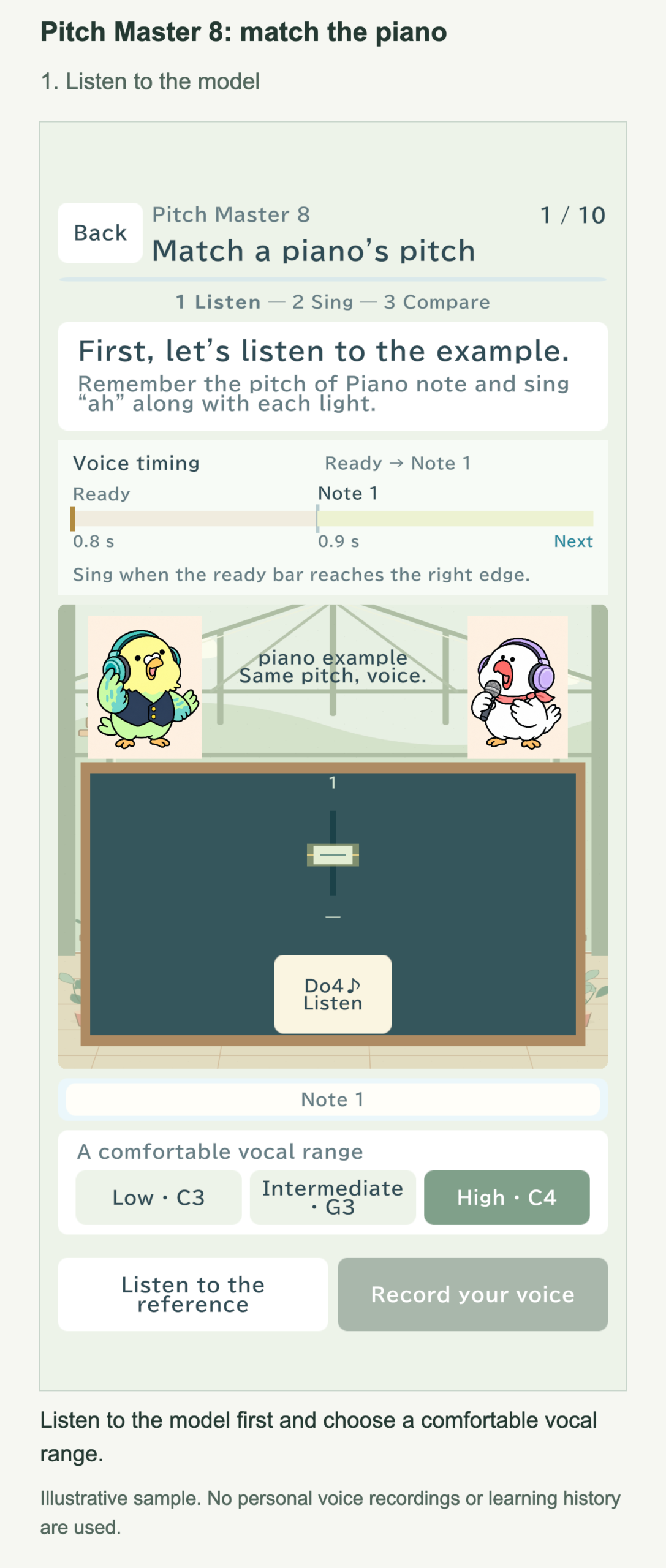
Can I also tap “C4 ♪ Listen” in the center?
Yes. Tap “♪ Listen” below a note name to hear just that note. When there are two or three notes, you can check any uncertain notes individually. For two- and three-note questions, also listen to the complete reference once using “Listen to the reference” at the bottom before recording.
There are 10 questions: one note in questions 1–3, two notes in questions 4–6, and three notes in questions 7–10. Start somewhere quiet where you can sing, and allow microphone access when prompted.
2. After tapping record, wait for the preparation cue
I’ve heard the piano’s pitch. How do I answer?
After listening to the reference, you can use “record aloud” at the bottom right. When you tap it, there is a 0.8-second preparation period. Don’t sing yet. Watch the preparation bar in “vocal timing” at the top move toward the right edge.
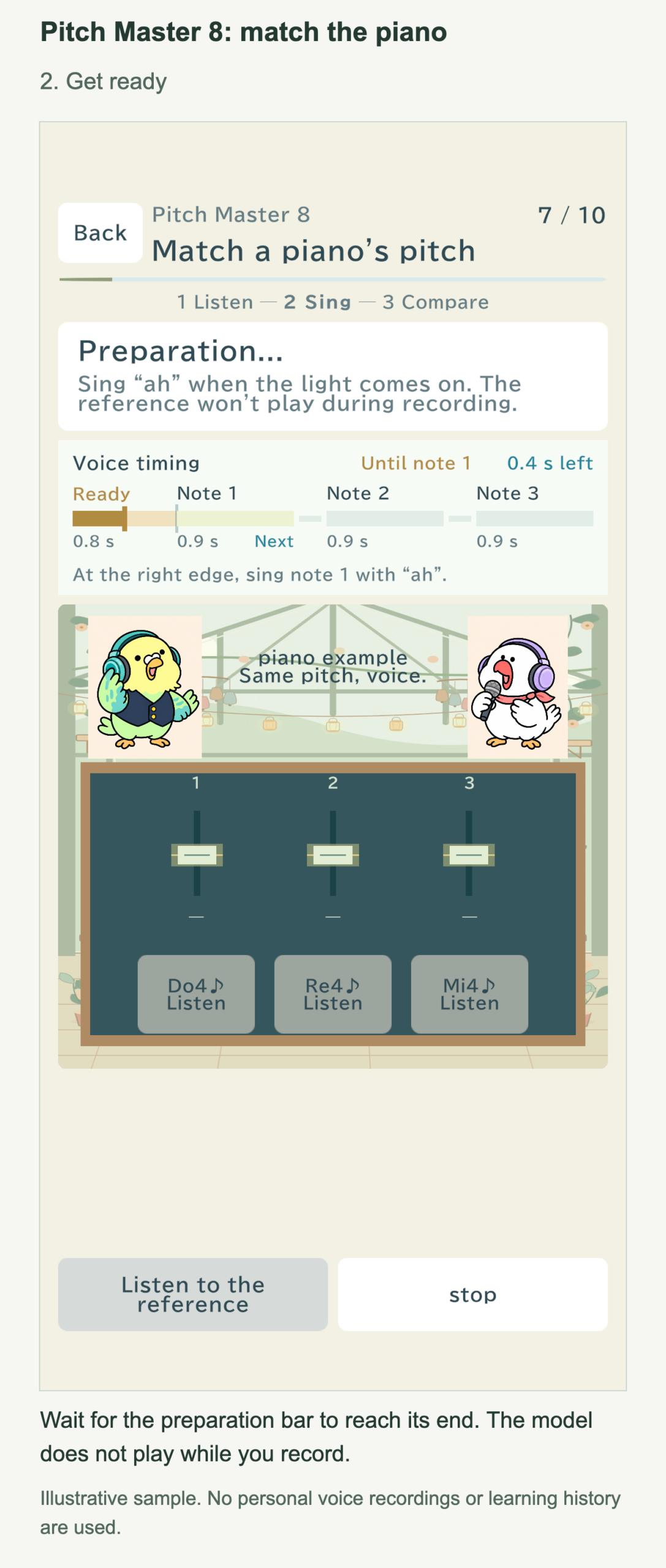
Can I sing along with the piano while recording?
The reference does not play during recording. Remember the pitches you heard and sing them. Listen again to any uncertain notes before recording. If you want to stop partway through, tap “stop”.
3. Sing “ah” at the pitch of the highlighted note
The preparation bar reached the end, and the first note lit up!
Sing “ah” with the “First note, now!” cue. Hold the pitch you heard until the highlighted bar reaches its end. Each note lasts 0.9 seconds. Focus on the pitch rather than trying to reproduce the piano’s tone with your voice.
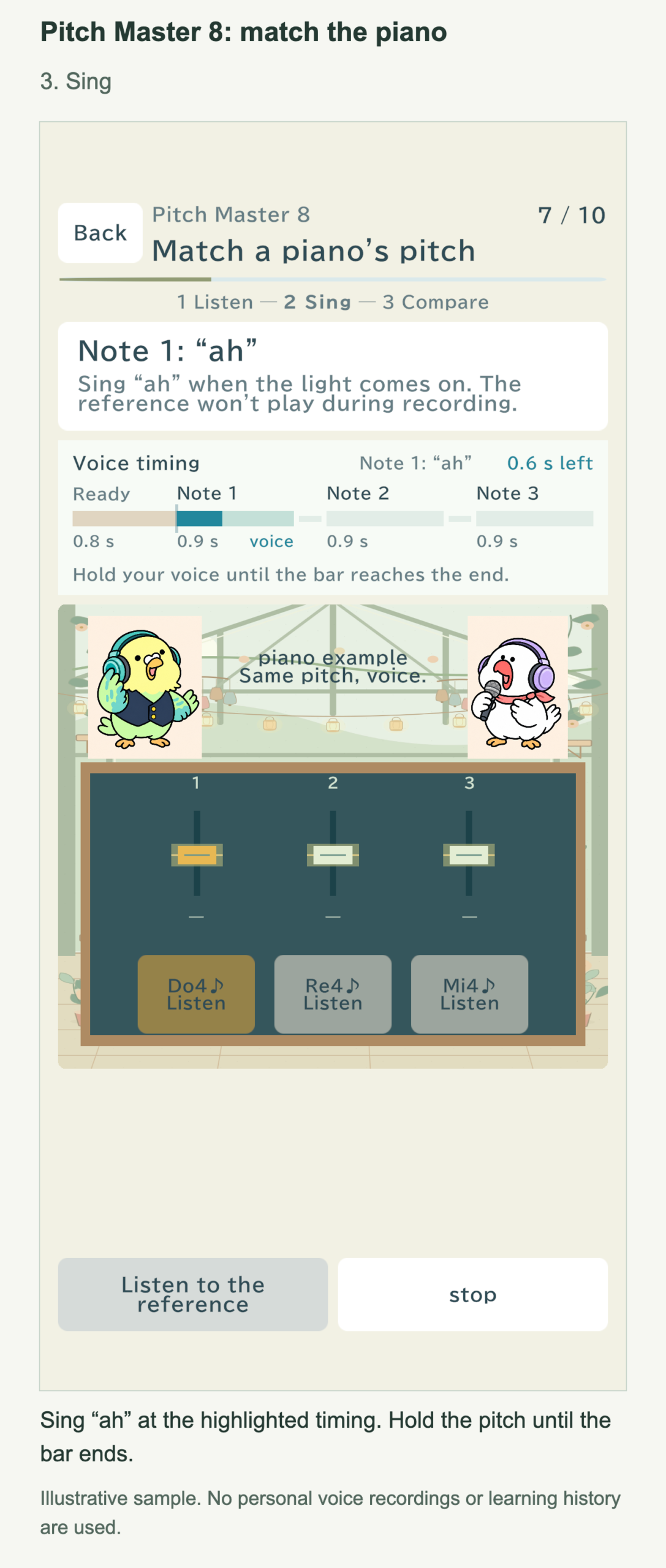
When there are three notes, should I keep singing the whole time?
Stop your voice between notes, then sing “ah” at the next note’s pitch when it lights up. The result appears after the last note. If your voice could not be detected for a note, the attempt is not scored and you will be prompted to record the same question again.
4. Listen again to notes that were off and compare them with your voice
My answer was incorrect… What should I change?
Let’s check one note at a time. For each note’s value, + means higher than the reference, and − means lower. The answer is correct when the central pitch of every recorded note is within one semitone of the reference—that is, within ±100 cents. Tap “♪ Listen” for any note you want to check again.
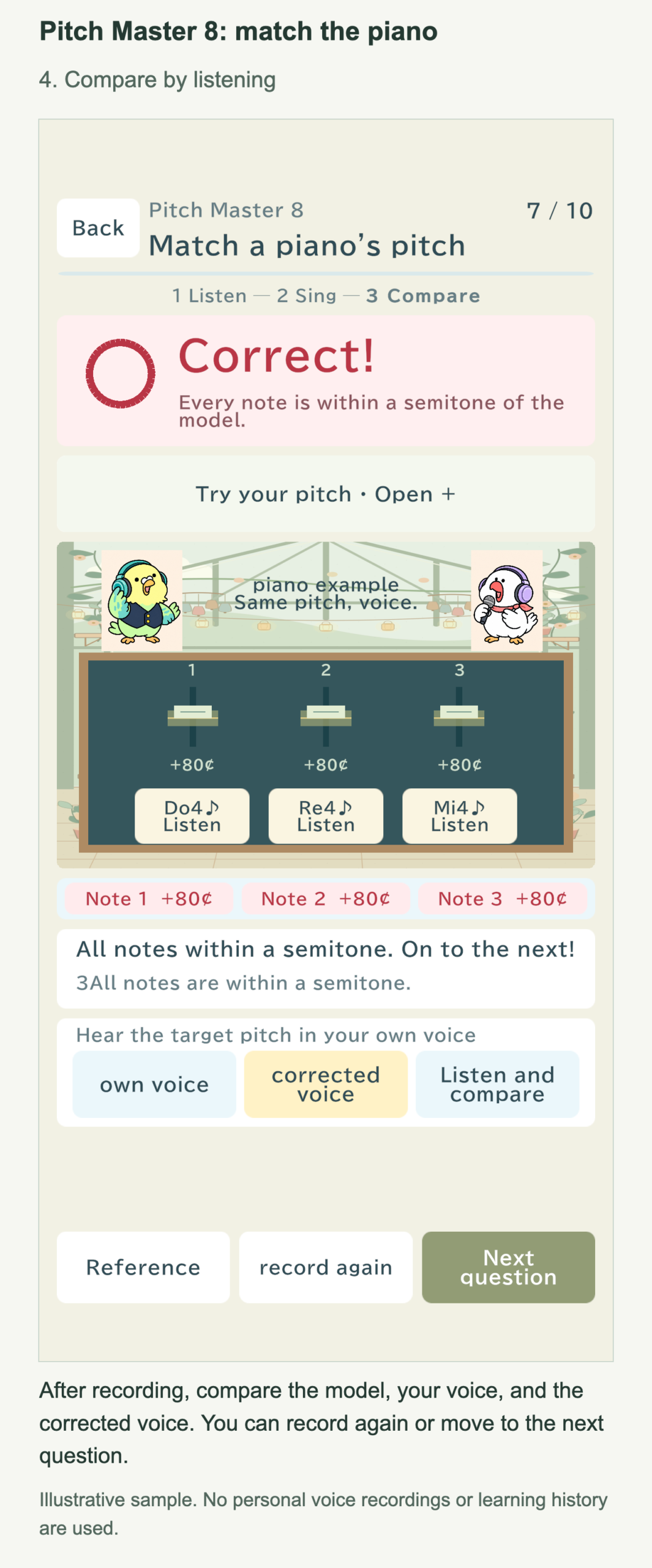
The piano and my voice sound different, so they’re hard to compare.
Try listening to “corrected voice”. This is your own recording adjusted to the reference pitch. Tap “Listen and compare” to hear the original recording followed by the corrected voice. You can compare the pitches using the same voice—your own.
Listening to the corrected voice does not change the result for your original recording. Sometimes a corrected version cannot be created. In that case, listen separately to “own voice” and “Reference” at the bottom left.
5. Experiment with your voice while watching its pitch
I’d like to sing a little lower next time. Can I try it first?
Tap “Check your pitch by singing · Open +”. In the graph, orange is the reference and blue is your recorded voice. A higher line means a higher pitch. Look at which notes were off and in which direction.
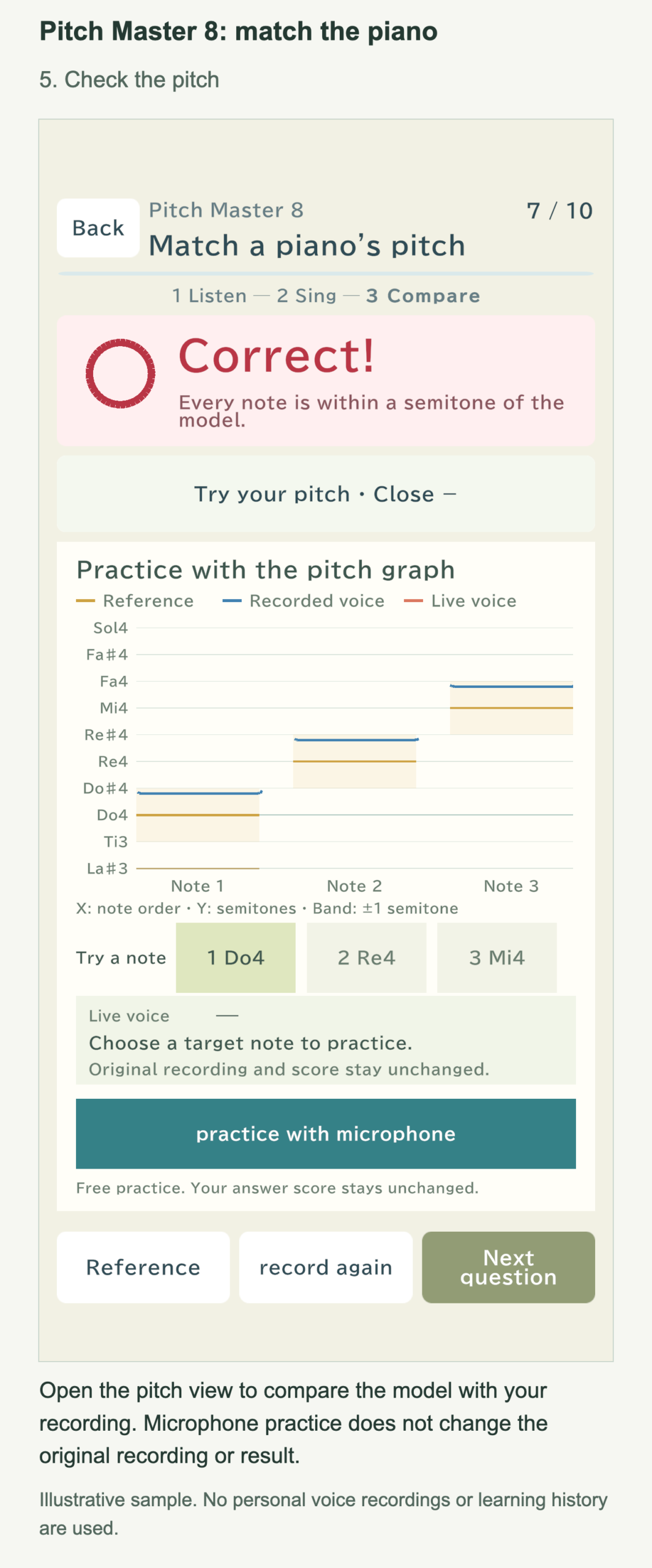
Choose a note under “Practice note”, then tap “practice with microphone” and sing. You can see your current voice as a red line or dots. Try singing a little higher or lower. When you finish, tap “stop the mic”.
I think I got closer to the right pitch. I’d like to record again!
Free practice does not change the result. To answer again, tap “record again”. Preparation begins immediately, so check the reference first. To continue, tap “Next question”. If it is gray, wait until the result animation finishes and the button becomes available.
6. Listen to your 10 recordings before finishing the lesson
I’ve finished all 10 questions. I think I can hear the piano’s pitch better now.
After question 10, tap “See results”, then review your work under “Listen to recording of 10 questions”. For each question, you can tap “Reference” and “own voice”, plus “corrected voice” when available. Swipe up or down in the list to reach the later questions.
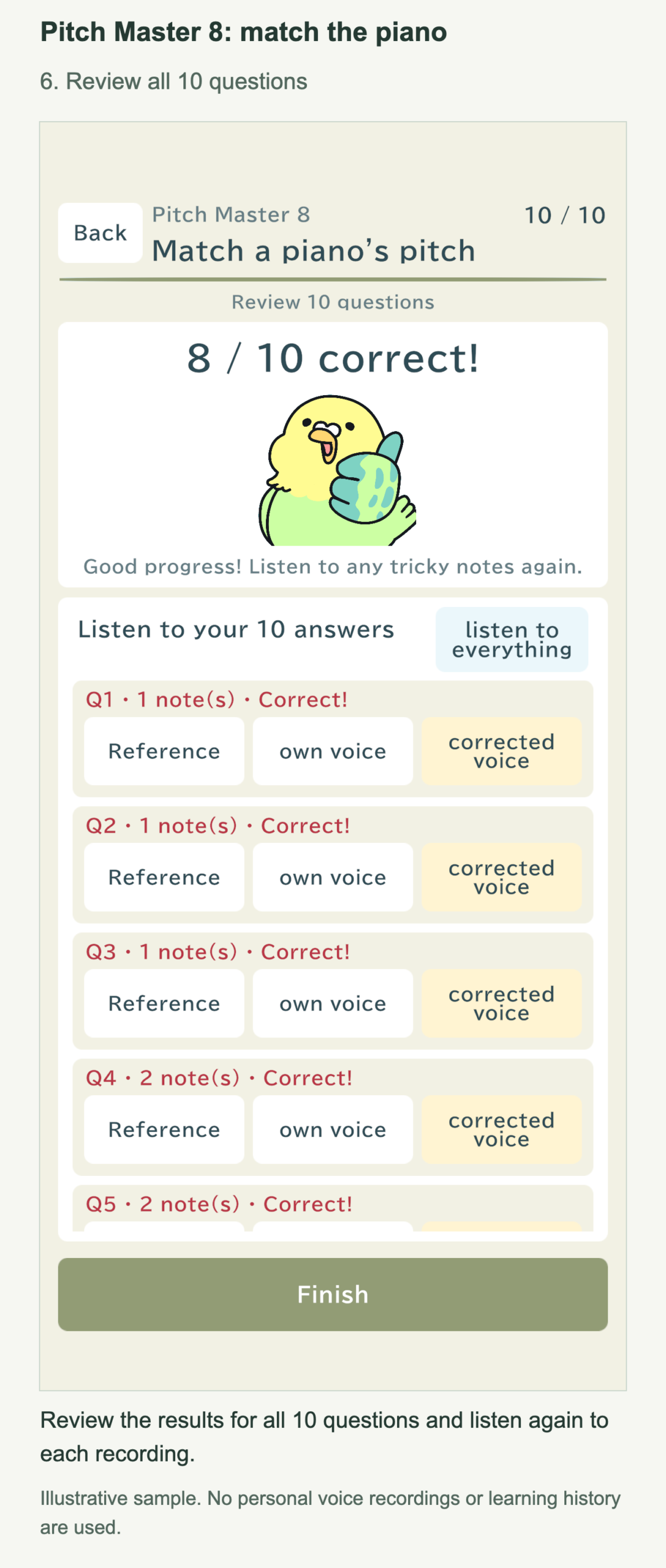
Tap “listen to everything” to hear each question’s reference followed by your voice. If you recorded a question again, the recording kept is the one you had when you moved to the next question. Finally, tap “Finish”.
You can replay recordings only while this lesson remains open. They are not kept after you close the lesson or restart it from the beginning, so review anything you want to check before finishing.
I’ll listen carefully to the piano, then sing “ah” when the note lights up. I’ll check uncertain notes one at a time and try again!